Step 5: Configure HTTPS Parameters on the Device
This section describes how to configure HTTPS related parameters on the device.
|
●
|
You can optionally pre-stage the device with a pre-loaded ini file including this configuration (for more information, contact your AudioCodes representative). |
|
●
|
If you have enabled the Interoperability Automatic Provisioning feature, ensure that your template file is also configured as described in this procedure to maintain an active HTTPS connection after the template file has been loaded to the device. |
|
➢
|
To configure HTTPS parameters on the device: |
|
1.
|
In the OVOC Web interface, ensure that device and tenant connections are enabled for HTTPS (default). |
Tenant Details
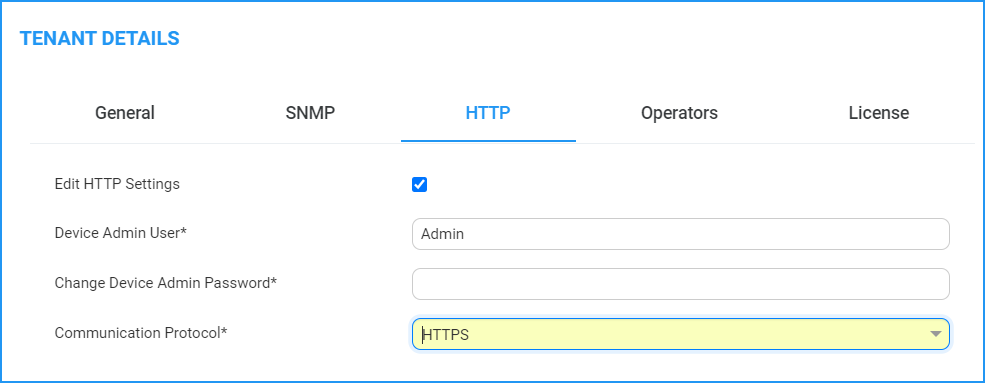
Device Details (Default HTTPS)

|
2.
|
Create a new text file using a text-based editor (e.g., Notepad). |
|
3.
|
Enable mutual authentication on the device. This configuration instructs the Automatic Update mechanism to verify the TLS certificate received from the OVOC server. |
|
●
|
For Media Gateway and SBC devices: |
AUPDVerifyCertificates=1
|
●
|
For MP-1xx devices, the ini file should include the following two lines:: |
AUPDVerifyCertificates=1
ServerRespondTimeout=10000
|
4.
|
Save and close the file. |
|
5.
|
Load the generated file as “Incremental INI file” (Maintenance menu > Software Update > Load Auxiliary Files > INI file (incremental). |
|
6.
|
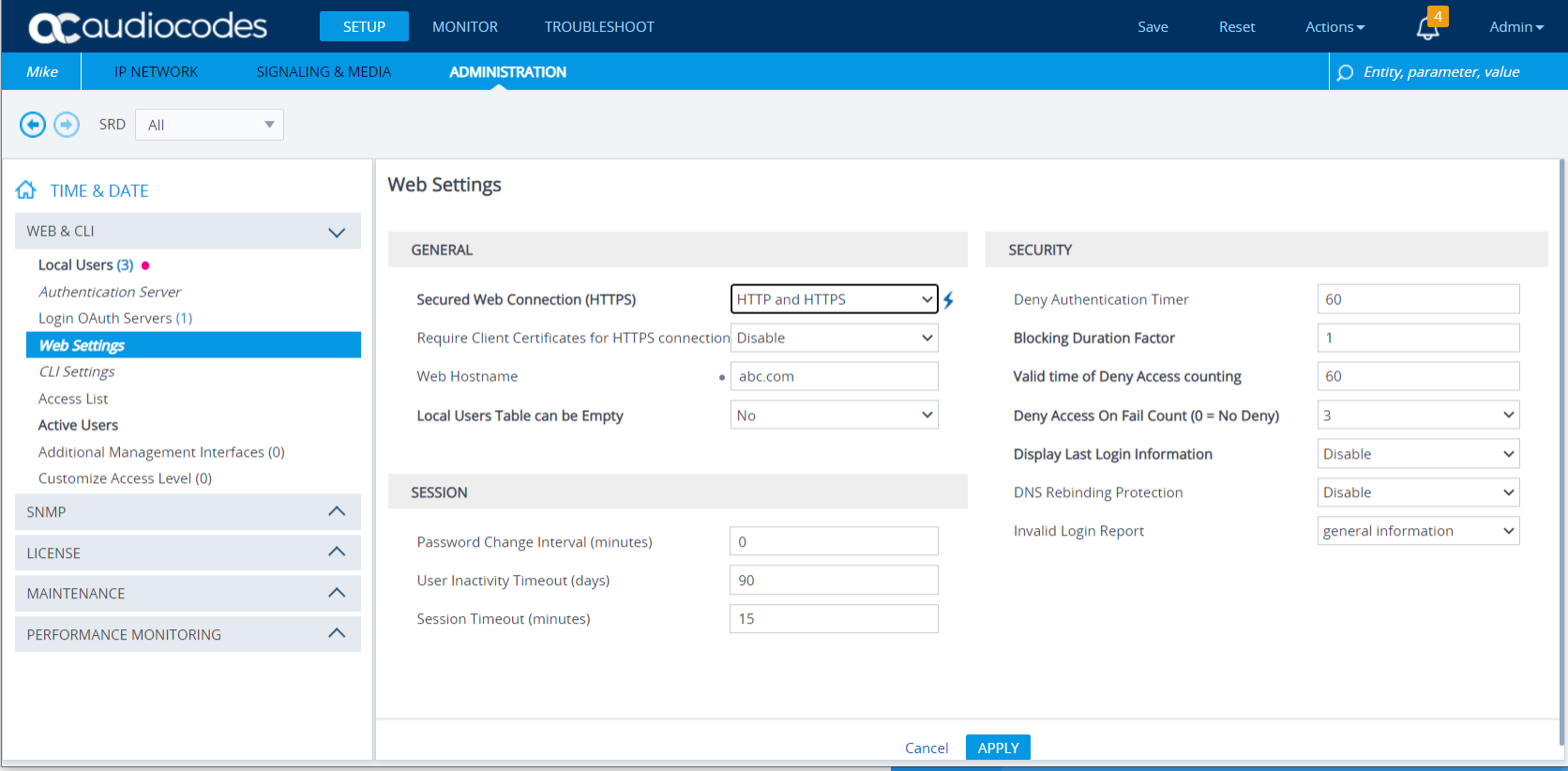
In the SBC Web interface, open the Web Settings page and set parameter Secured Web Connection (HTTPS) to one of the following: |
SBC Web Settings Page
|
7.
|
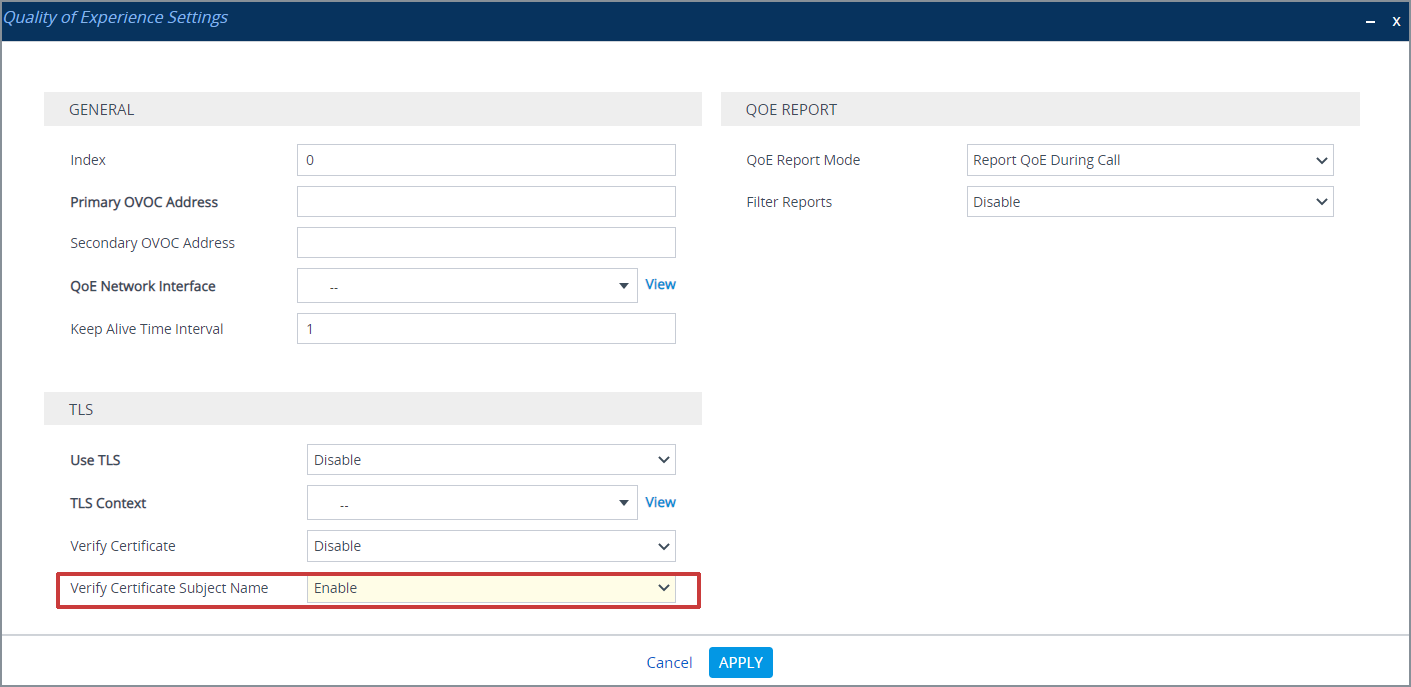
If you configured the SBC Devices Communication parameter to Hostname-Based in the OVOC Web, you must configure the parameter "Verify Certificate SubjectName" on the managed device (Setup Menu > Signaling & Media tab > Media folder > Quality of Experience Settings). |
Quality of Experience Settings
|
8.
|
Open the TLS Contexts page (Setup menu > IP Network tab > Security folder > TLS Contexts). |
|
9.
|
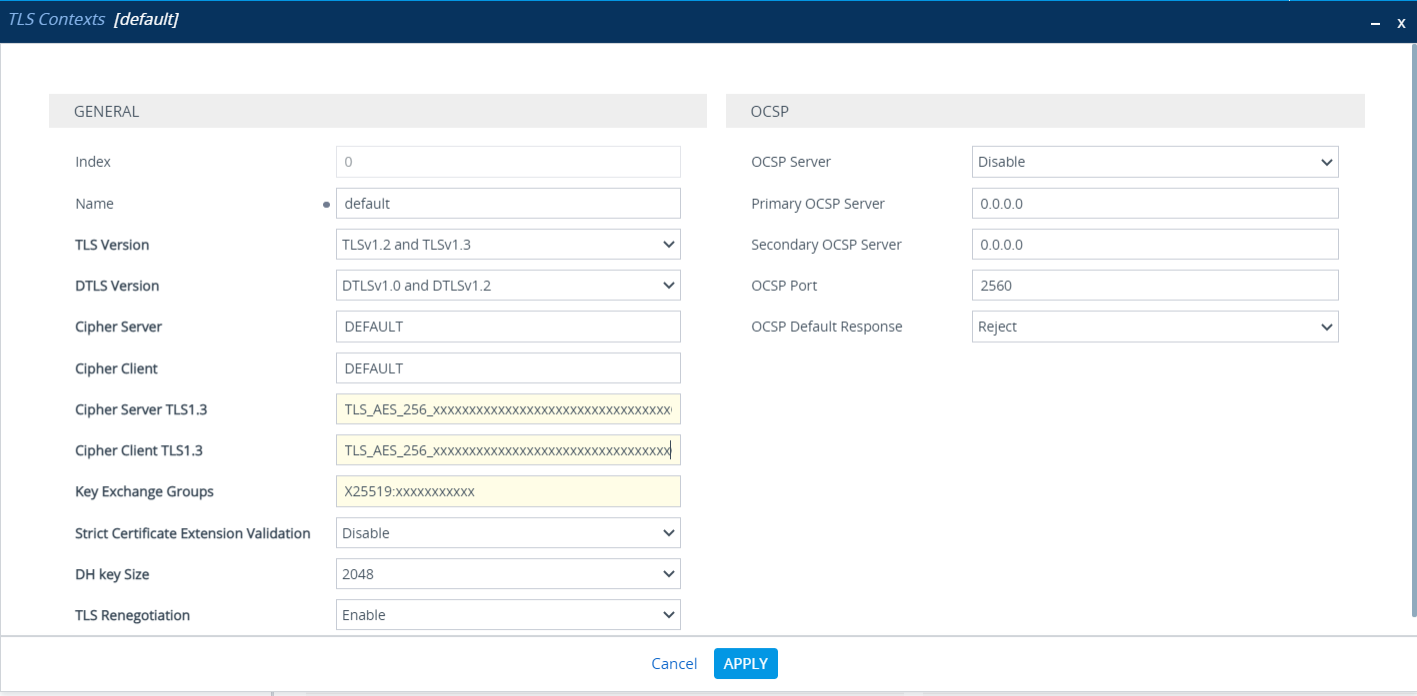
In the table, select the TLS Context #0 (Management interface), and then click Edit . The following screen is displayed: |
TLS Contexts
|
10.
|
Set the required 'TLS Version' (default TLS Version 1.0). |
OVOC supports TLS versions 1.0, 1.1. and 1.2
|
11.
|
Ensure 'Cipher Server' is set to DEFAULT. |
|
12.
|
Ensure 'Cipher Client' is set to DEFAULT. |